
Laptop Buying Guide: 17 Smart Tips Before You Buy Your Next Computer

The Ultimate Guide to Choosing the Right Laptop for Your Needs
Overview & Key Information
When you’re in the market for a new laptop, the sheer volume of options can feel overwhelming. From ultrabooks that fit in your backpack to gaming rigs that can run the latest titles at 4K, each category serves a distinct purpose. Understanding the core components—CPU, GPU, RAM, storage, display, battery life, and build quality—helps you narrow down choices that align with your workflow, budget, and lifestyle.
In addition to hardware, software ecosystems, warranty terms, and resale value play a role in long‑term satisfaction. A well‑chosen machine can boost productivity, support creative projects, and even become a reliable companion for years. That’s why a thoughtful, data‑driven approach is essential.
Essential Requirements, Tools, Resources, or Prerequisites
Before diving into the market, gather the following:
- Use‑case definition – Are you a student, a developer, a designer, or a gamer?
- Budget range – Set a realistic price ceiling, including potential accessories.
- Performance benchmarks – Familiarize yourself with benchmarks like PassMark, Geekbench, and Cinebench.
- Retailer comparison tools – Use price‑tracking sites (e.g., CamelCamelCamel, PriceSpy) to spot deals.
- Review aggregators – Sites like NotebookCheck, TechRadar, and Tom’s Guide provide in‑depth reviews.
- Physical test environment – If possible, visit a store to test keyboard feel, trackpad precision, and screen quality.
Timeline, Process, or Important Considerations
Choosing a laptop is rarely a spontaneous decision. Here’s a typical timeline:
| Stage | Duration | Key Actions |
|---|---|---|
| Research | 1–2 weeks | Read reviews, compare specs, set budget. |
| Shortlist | 3–5 days | Filter models that meet core criteria. |
| Hands‑on testing | 1–2 days | Visit stores, test ergonomics, battery life. |
| Purchase decision | 1–3 days | Negotiate price, confirm warranty, finalize purchase. |
| Post‑purchase setup | 1–2 days | Install OS, drivers, backup, and security tools. |
Adjust the timeline based on urgency. For instance, if you need a laptop for an upcoming exam, you might compress the research phase but still allocate time for hands‑on testing.
Detailed Explanation / Step‑by‑Step Guide
Below is a granular, data‑driven workflow that ensures you pick a machine that fits your needs.
1. Define Your Primary Use Case
Classify your usage into one of the following categories:
- Light office work & web browsing
- Content creation (photo/video editing)
- Software development & virtualization
- High‑end gaming & VR
- Portability & travel
Each category has distinct hardware priorities. For example, a developer may prioritize CPU and RAM, while a gamer focuses on GPU and refresh rate.
2. Set a Realistic Budget
Break down your budget into:
- Base laptop price
- Optional accessories (mouse, external SSD, docking station)
- Extended warranty or insurance
- Software licenses (e.g., Adobe Creative Cloud, IDEs)
Use price‑tracking tools to identify the best time to buy. Many retailers offer seasonal sales (Back‑to‑School, Black Friday, Cyber Monday).
3. Compare Core Specifications
Use a spreadsheet to compare key specs across shortlisted models. Focus on:
- CPU: Core count, clock speed, IPC (instructions per cycle)
- GPU: Integrated vs. discrete, VRAM, CUDA cores (for NVIDIA)
- RAM: Size, speed (DDR4/DDR5), dual‑channel support
- Storage: SSD type (NVMe vs. SATA), capacity, read/write speeds
- Display: Resolution, panel type (IPS, OLED), refresh rate, color gamut
- Battery: mAh rating, real‑world endurance, fast‑charge support
- Build: Materials, weight, thermal design power (TDP)
Cross‑reference benchmark scores to gauge real‑world performance.
4. Evaluate Software Ecosystem & Compatibility
Consider the operating system and its ecosystem:
- Windows: Broad hardware support, gaming, enterprise tools.
- macOS: Seamless integration with Apple devices, optimized for creative workflows.
- Linux: Open‑source flexibility, ideal for developers and researchers.
Check driver availability, especially for GPUs and specialized peripherals.
5. Test Ergonomics & Build Quality
In a physical store, assess:
- Keyboard: Key travel, feedback, layout.
- Trackpad: Precision, multi‑touch gestures.
- Screen: Brightness, contrast, viewing angles.
- Port selection: USB‑C, HDMI, SD card reader, headphone jack.
- Thermal performance: Fan noise, heat distribution.
Ask for a demo of the operating system and pre‑installed software.
6. Verify Warranty & Support
Check:
- Warranty duration and coverage (parts, labor, accidental damage).
- On‑site repair options vs. mail‑in service.
- Availability of spare parts and upgrade options.
- Manufacturer’s reputation for customer service.
7. Make the Purchase & Post‑Setup
After selecting the model:
- Confirm the final price, including taxes and shipping.
- Set up a secure backup solution (cloud or external drive).
- Install essential software: antivirus, productivity suite, development tools.
- Configure power settings for optimal battery life.
- Update BIOS and firmware to the latest versions.
Document the serial number and warranty details for future reference.
Benefits, Advantages, or Key Features
Choosing the right laptop yields tangible benefits:
- Productivity boost – Faster load times, multitasking, and smoother workflows.
- Longevity – A well‑built machine can last 4–5 years with proper care.
- Portability – Lightweight designs reduce travel fatigue.
- Energy efficiency – Modern CPUs and SSDs consume less power, extending battery life.
- Future‑proofing – Upgradable RAM and storage keep the laptop relevant.
Alternative Approaches, Methods, or Expert Tips
While the step‑by‑step guide is comprehensive, consider these alternatives:
- Build‑your‑own PC – For enthusiasts, a custom desktop offers superior performance and upgradeability.
- Cloud computing – Services like AWS WorkSpaces or Azure Virtual Desktop offload heavy tasks to the cloud.
- Refurbished or pre‑owned – Certified refurbished laptops can offer significant savings.
- Subscription models – Some manufacturers offer subscription plans that include hardware, software, and support.
Expert tip: Always check the thermal design power (TDP) of the CPU and GPU. A lower TDP often translates to better battery life and quieter operation.
Common Mistakes to Avoid
Even seasoned buyers fall into these traps:
- Over‑investing in unnecessary specs – A high‑end GPU may be wasted if you never play games.
- Ignoring battery life – A powerful laptop that lasts only 2 hours is impractical for mobile work.
- Skipping the warranty check – Some models have limited coverage or require additional purchase.
- Neglecting ergonomics – A cramped keyboard or poor trackpad can lead to discomfort.
- Buying on impulse during sales – Compare multiple models before committing.
Maintenance, Optimization, or Best Practices
Keep your laptop running smoothly with these practices:
- Regular updates – Keep the OS, drivers, and firmware current.
- Disk cleanup – Use built‑in tools or third‑party utilities to free space.
- Thermal management – Clean vents, use cooling pads, and avoid blocking airflow.
- Battery care – Avoid keeping the battery at 100% or 0% for extended periods.
- Backup strategy – Implement a 3‑2‑1 backup rule (3 copies, 2 local, 1 off‑site).
- Security hygiene – Use strong passwords, enable two‑factor authentication, and install reputable antivirus.
Conclusion
By following a structured, data‑driven approach, you can confidently navigate the crowded laptop market and secure a machine that aligns with your goals. Remember to laptop buying guide and consult best laptops reviews to stay informed. Your investment in the right laptop will pay dividends in productivity, comfort, and long‑term satisfaction.
FAQs
- What is the best battery life for a laptop?
- Typically, a battery life of 8–10 hours is considered good for most users. Gaming laptops often fall below 5 hours, while ultrabooks can exceed 12 hours.
- Should I prioritize a high refresh rate display?
- If you’re a gamer or a video editor, a 120 Hz or higher display improves motion clarity. For general use, a 60 Hz panel is sufficient.
- Is it worth buying a laptop with a dedicated GPU?
- For tasks like 3D rendering, video editing, or gaming, a dedicated GPU offers significant performance gains. For basic office work, integrated graphics are adequate.
- How often should I update my laptop’s firmware?
- Check the manufacturer’s website quarterly. Firmware updates can improve stability, security, and battery efficiency.
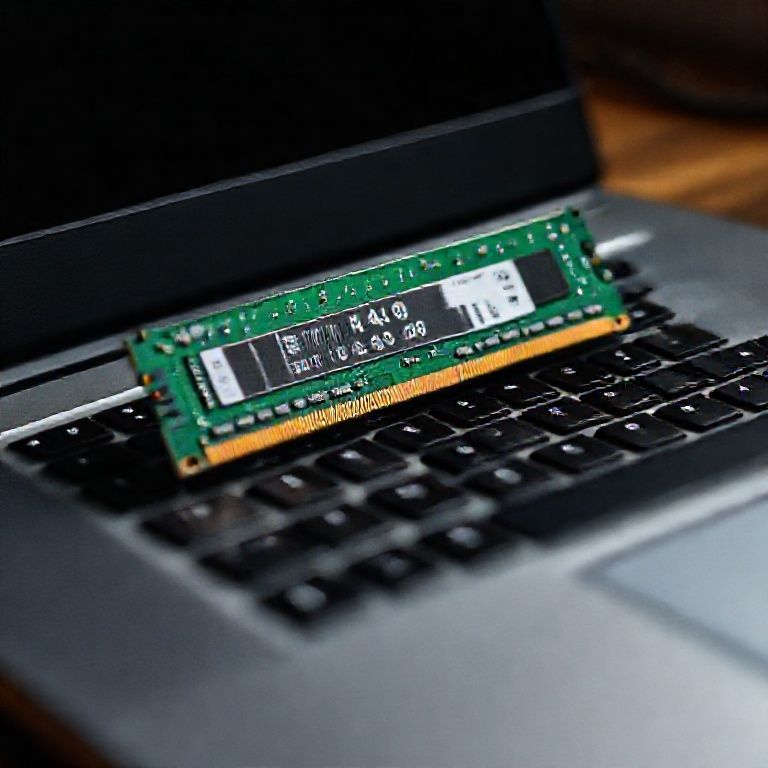
- Can I upgrade the RAM on most laptops?
- Many laptops allow RAM upgrades, but some models have soldered memory. Verify the upgradeability in the product specifications before purchase.




Responses