
External Monitor Scaling Settings: Hidden Traps that Hold You Back

external monitor scaling settings
Introduction
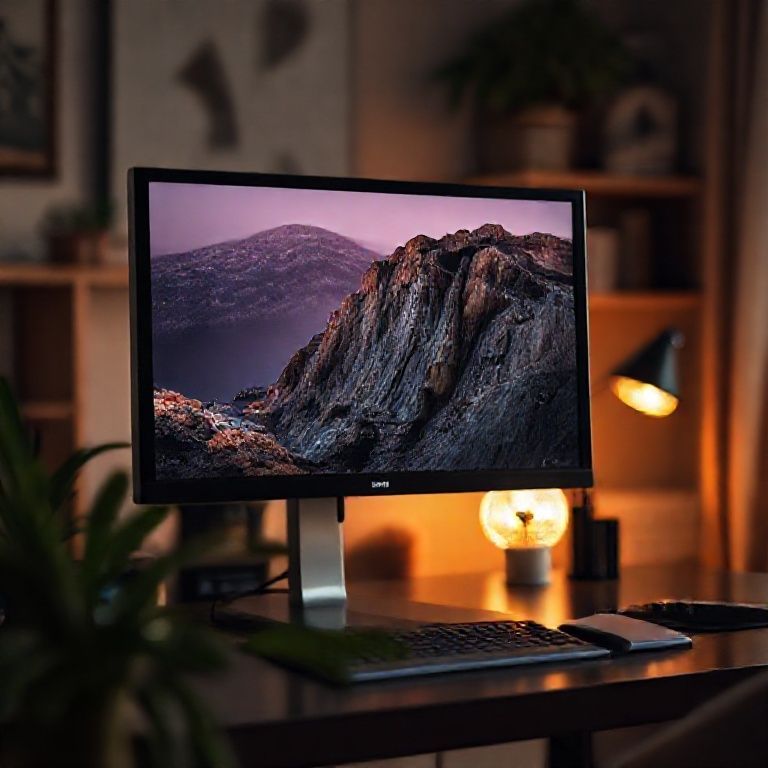
In today’s digital landscape, having multiple displays at your disposal is no longer a luxury, but a necessity for many users. With the proliferation of laptops and desktops equipped with external monitors, it’s become increasingly important to have control over how these additional screens are integrated into our workspaces. One key setting that plays a crucial role in this process is the external monitor scaling settings.
When you connect an external monitor to your device, you may notice that the display is not being utilized to its full potential. The image appears stretched or shrunk, making it difficult to read and navigate comfortably. This is where external monitor scaling settings come into play. By adjusting these settings, you can ensure that your external monitor is properly scaled to match the resolution of your primary display, providing a seamless and intuitive user experience.
However, with great flexibility comes great complexity. External monitor scaling settings offer a range of options and configurations that can be overwhelming for those who are new to using multiple displays. In this article, we’ll delve into the world of external monitor scaling settings, exploring the different settings, techniques, and best practices for optimizing your multi-monitor setup.

Understanding External Monitor Scaling Settings
External monitor scaling settings refer to the process of adjusting the resolution and size of an external display connected to a computer or laptop. This setting is crucial for optimizing the visual experience on multiple screens.
Setting Up External Monitor Scaling Settings
Step 1: Connect and Configure the External Monitor
Connecting your external monitor requires selecting the correct cable type (VGA, DVI, HDMI, or DisplayPort). Ensure that the monitor is turned on and set to the correct input. Then, configure the display settings by going to the Display Settings.
Step 2: Adjust the Display Settings
In the Display Settings window, click on the “Identify” button next to the external monitor to confirm its connection. Then, click on the “Scale and layout” option to adjust the resolution and size of the external monitor.
Step 3: Apply Scaling Options
When Applying Scaling Options, Consider the Following Factors:
Resolution: Ensure that the resolution matches or is compatible with the external monitor.
Aspect Ratio: Consider whether you want to maintain the original aspect ratio or adjust it for a more cinematic experience.
Display Orientation: Choose between landscape or portrait orientation based on your preference.
Understanding Scaling Options
Scale Option
The scale option allows you to adjust the resolution of the external monitor without changing its aspect ratio. This setting is useful when you want to keep the same resolution on both screens while adjusting their sizes. For example:
If you have a 1920×1080 (Full HD) resolution and an external monitor with a native resolution of 1920×1200, scaling would allow you to adjust the size without changing the aspect ratio.
Fit Option
The fit option, on the other hand, adjusts the size of the external monitor according to its native resolution. This setting is ideal when you want to maximize the use of space on your desktop. For instance:
If you have a 1920×1080 (Full HD) resolution and an external monitor with a native resolution of 3840×2160 (4K), scaling would adjust the size to fit within the available space.
Troubleshooting Common Issues
Issue 1: External Monitor Not Recognized
If the external monitor is not recognized by the computer or laptop, try:
Adjusting the display settings to ensure that the correct cable is selected.
Restarting the computer or laptop to refresh the connection.
Issue 2: Incorrect Scaling Settings
If the scaling settings are incorrect, try resetting them to default values and adjust as needed. For example:
If you have set a resolution that does not match the external monitor’s native resolution, reset the scaling settings to default and adjust accordingly.
If the external monitor is recognized but the display settings are not applied correctly, restart the computer or laptop.
Advanced Scaling Techniques
Aspect Ratio Adjustment
Adjusting the aspect ratio can enhance your viewing experience. Consider using:
16: 9 for cinematic experiences
4: 3 for traditional TV-like experiences
Custom aspect ratios for specific applications (e.g., gaming)
Multiple Monitor Settings
Using multiple monitors requires adjusting the scaling settings to accommodate both displays simultaneously. For example:
Using two identical monitors side by side with matching resolutions.
Using a single monitor with an external display that has a different resolution.
Best Practices for Scaling External Monitors
Regularly check and adjust display settings to ensure optimal performance.
Use high-quality cables and connections to avoid signal degradation.
Consider using external monitor calibration tools to optimize the visual experience.
Conclusion
In today’s digital landscape, having control over your external monitor scaling settings is crucial for optimal productivity and visual comfort. By adjusting the scaling settings on your computer, you can tailor the display to suit your individual needs, whether that means increasing or decreasing the size of elements on screen.
To take full advantage of this feature, we encourage you to explore the various options available in your operating system’s display settings. Don’t be afraid to experiment and find the perfect balance for your eyes and your workflow. By making a few simple adjustments, you can unlock a more efficient and enjoyable computing experience.
Here are five concise FAQ pairs for external monitor scaling settings:
Q: What is external monitor scaling, and how does it work?
A: External monitor scaling refers to the process of adjusting the display resolution on an external monitor to match the capabilities of the computer’s graphics card.
Q: How do I enable external monitor scaling on my Windows computer?
A: To enable external monitor scaling on a Windows computer, go to Display settings, select “Extend” or “Duplicate” from the options, and then drag the window or icon to the desired position on the extended desktop.
Q: Can I use multiple monitors with different resolutions at the same time?
A: Yes, you can use multiple monitors with different resolutions, but the resolution of each monitor will be limited by the computer’s graphics card. The computer will automatically adjust the scaling settings for each monitor.
Q: How do I set the refresh rate on an external monitor using Windows?
A: To set the refresh rate on an external monitor using Windows, go to Display settings, select “Adjust display settings”, and then click on the desired refresh rate (e.g. 60Hz, 120Hz) for each connected monitor.
Q: Will my computer’s graphics card be strained if I use multiple monitors with high resolutions?
Here’s your short quiz:
1. What is the primary purpose of external monitor scaling settings?
A) To adjust display brightness
B) To optimize screen resolution for specific tasks
C) To customize the layout of multiple monitors
Show answer
Answer: B) To optimize screen resolution for specific tasks
2. Which of the following best describes the behavior of a 16:9 monitor when set to “Fit” mode in external monitor scaling settings?
A) The entire image is displayed on the screen
B) The monitor is stretched to fit the available space, maintaining aspect ratio
C) The resolution is reduced to match the display’s native resolution
Show answer
Answer: B) The monitor is stretched to fit the available space, maintaining aspect ratio
3. What happens when you set an external monitor to “Stretch” mode in scaling settings?
A) The image is reduced in size and centered on the screen
B) The monitor is resized to match the display’s native resolution
C) The entire image is displayed on the screen, with black bars if necessary
Show answer
Answer: C) The entire image is displayed on the screen, with black bars if necessary
4. Which option allows you to set a specific scale factor for an external monitor?
A) Fit mode
B) Stretch mode
C) Scale and stretch mode
Show answer
Answer: C) Scale and stretch mode

Your expertise really shows in this post!
This helped me solve my problem. Thank you so much! Thanks for sharing!
Brilliant explanation! Everything makes sense now. 😊
Well written! So helpful and informative!
Interesting perspective. Interesting perspective. I never thought about it this way.
Thanks for this post. Excellent work as always!