
Digital Declutter Checklist: 9 Red Flags that Sabotage Progress

digital declutter checklist
Introduction
In today’s digital age, our lives are increasingly intertwined with technology. From social media to email, apps, and files, it’s easy to get overwhelmed by the sheer amount of digital information we collect. As a result, our devices can become cluttered, making it difficult to find what we need when we need it. This is where a digital declutter checklist comes in – a simple yet effective tool to help us regain control over our digital lives.
A well-crafted digital declutter checklist is more than just a list of tasks to complete; it’s a roadmap for transforming your digital landscape into a streamlined, organized space that supports your productivity and goals. By using a digital declutter checklist, you can identify areas where you’re wasting time and energy, eliminate unnecessary files and subscriptions, and create habits that help you maintain your digital space.
In this article, we’ll explore the benefits of creating and using a digital declutter checklist, including how to customize one to fit your needs, what tasks to include on your list, and tips for staying on track. Whether you’re looking to free up storage space, reduce stress, or simply work more efficiently, a digital declutter checklist is an essential tool to help you achieve your goals in the digital realm.

Creating a Digital Declutter Checklist: a Step-by-Step Guide
Understanding the Importance of a Digital Declutter Checklist
In today’s digital age, it’s easy to accumulate a vast amount of files, emails, and data that can clutter our devices and disrupt our productivity. However, having too much digital stuff can lead to stress, decreased focus, and even security risks. A well-organized digital space can boost productivity, reduce anxiety, and improve overall well-being.
Step 1: Identify the Areas to Declutter
Before creating your digital declutter checklist, it’s essential to identify the areas where you want to declutter. This could include:
Email inbox
Computer files and folders
Phone storage and apps
Cloud storage services (e.g., Google Drive, Dropbox)
Social media accounts
Online subscriptions and memberships
Step 2: Gather Your Digital Files and Data
Start by gathering all your digital files, emails, and data from various sources such as your computer, phone, and cloud storage services. This might involve:
Logging into your email account and downloading all messages to a local folder
Transferring files from your computer to an external hard drive for backup
Accessing your cloud storage services to review stored files and data
Step 3: Create a Digital Declutter Checklist
Create a checklist that outlines the steps you need to take to declutter each area. Consider including tasks such as:
| Category | Task | Priority |
| — | — | — |
| Email | Delete unnecessary emails (e.g., newsletters, promotional emails) | High |
| Computer Files | Organize files into clear categories and labels | Medium |
| Phone Storage | Remove unused apps and clear out storage space | Low |
Step 4: Implement Your Digital Declutter Checklist
Start implementing your digital declutter checklist by following the steps outlined in each category. Remember to prioritize tasks based on their importance and deadlines.
Tips for Effective Implementation
To ensure effective implementation of your digital declutter checklist, follow these tips:
Set aside dedicated time each week to work on your digital decluttering project
Use a task management tool or app to keep track of your progress
Consider enlisting the help of a friend or family member to stay accountable
Step 5: Maintain Your Digital Declutter Checklist
Once you’ve implemented your digital declutter checklist, it’s essential to maintain it regularly. Schedule regular check-ins with yourself to review and update your checklist as needed.
Best Practices for Maintenance
To ensure the longevity of your digital declutter checklist, follow these best practices:
Regularly review and update your checklist to reflect changes in your digital life
Use automation tools to streamline repetitive tasks (e.g., automatic email unsubscribes)
Continuously educate yourself on new digital decluttering techniques and strategies
Additional Tips for Deepening Your Digital Declutter Checklist
Consider Adding the Following Tasks to Your Checklist:
Review and delete old or unnecessary social media accounts
Organize your computer desktop and taskbar
Update your password manager and two-factor authentication settings
Consider implementing a “one in, one out” policy for new digital purchases
Conclusion
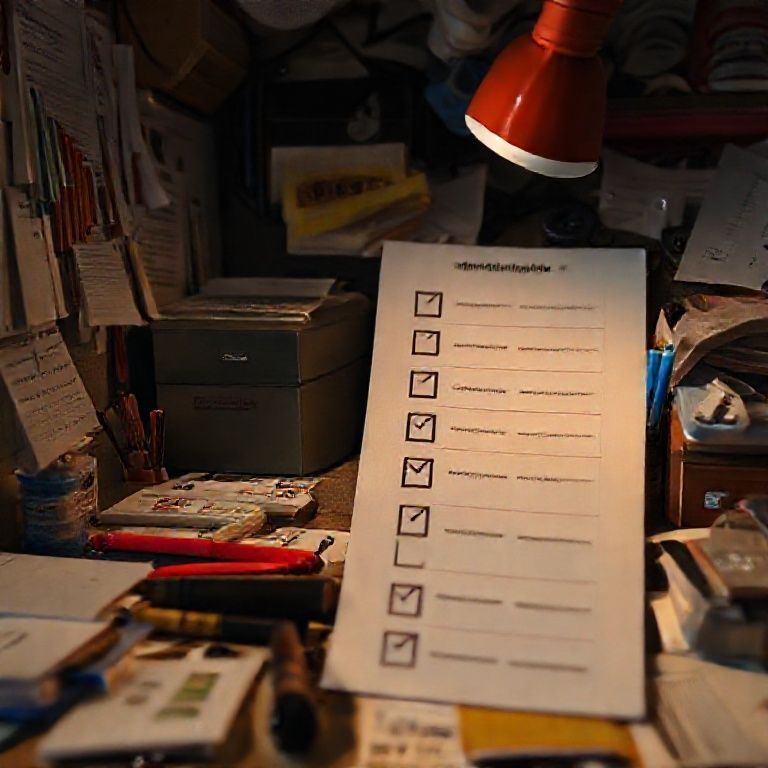
As you navigate the digital landscape, it’s easy to accumulate clutter that can slow down your productivity and compromise your online security. Take control of your digital life by creating a personalized digital declutter checklist tailored to your specific needs.
Start by identifying areas where you’d like to declutter, such as email inboxes, computer files, or social media accounts. Then, follow these simple steps:
1. Review and delete unnecessary emails or messages.
2. Organize and categorize your files into clear folders.
3. Unfollow or mute irrelevant social media accounts.
4. Cancel subscription services you no longer use.
By implementing these steps and regularly reviewing your digital spaces, you’ll be able to maintain a clutter-free online environment that supports your goals and priorities.
Here are five concise FAQ pairs for a digital declutter checklist:
Q: What is a digital declutter checklist, and why do I need it?
A: A digital declutter checklist is a tool that helps you identify and organize your digital files, folders, and accounts to free up space and reduce stress. It’s essential for maintaining a clutter-free online presence.
Q: How can I use a digital declutter checklist to declutter my computer?
A: Use the checklist to sort through files and delete or archive unnecessary documents, empty recycle bins, and organize folders into clear categories.
Q: What types of devices should I include in my digital declutter checklist?
A: Include your computer, smartphone, tablet, and any other devices you use regularly. This will help you ensure that all your devices are organized and up-to-date.
Q: How often should I review and update my digital declutter checklist?
A: Review and update your checklist every 3-6 months to reflect changes in your online activities and to prevent clutter from building up again.
Q: What if I’m not tech-savvy – can I still use a digital declutter checklist?
Here is a short quiz for a “Digital Declutter Checklist”:
Question 1: What should you do with old emails that are no longer relevant?
A) Delete them immediately
B) Archive them to keep historical records
C) Forward them to a spam folder
Show answer
Answer: B
Question 2: Which of the following is NOT a good practice for organizing digital files?
A) Create folders for each project or category
B) Use clear and descriptive file names
C) Keep all files in one general “Miscellaneous” folder
Show answer
Answer: C
Question 3: What should you do with unused phone apps on your device?
A) Delete them immediately to free up space
B) Move them to a separate folder for future reference
C) Leave them installed in case you need them again in the future
Show answer
Answer: A
Question 4: Which of the following is a good way to back up your digital files?
A) Use an external hard drive and manually update it regularly
B) Use cloud storage services like Google Drive or Dropbox
C) Burn CDs/DVDs with all your files on them
Show answer
Answer: B







Thank you for this detailed explanation. Much appreciated! 💯
I enjoyed reading this. Perfect timing! I was just researching this topic.
Great article! Your insights are always spot-on.
Never considered this angle before. Mind-blowing! This was really helpful.
This is pure gold! 👍
This is so useful! Bookmarking for future reference!