
Bluetooth Troubleshooting Checklist: 13 Effective Ideas to Save Time

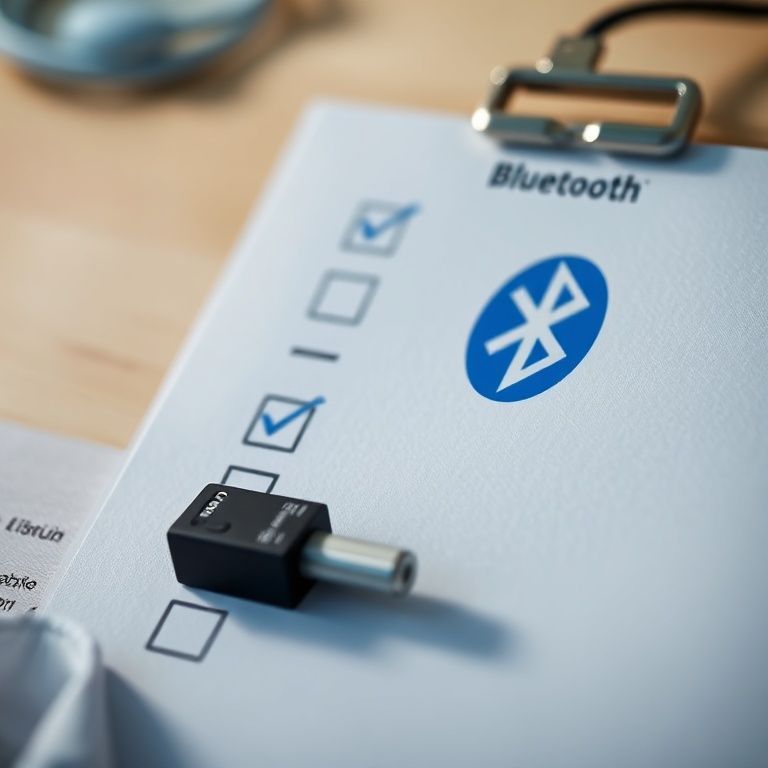
bluetooth troubleshooting checklist

Introduction
Are you struggling to connect your devices via Bluetooth? Do you find yourself stuck in a cycle of frustration as you try to troubleshoot the issue, only to be met with dead ends and disappointment? You’re not alone. Many of us have been there – whether it’s trying to pair our headphones with our phone or connecting our speaker to our laptop, Bluetooth connectivity can be a finicky beast to tame.
In today’s world where wireless connectivity is the norm, being able to troubleshoot common Bluetooth issues is an essential skill. But navigating the complex web of Bluetooth settings and protocols can be overwhelming, especially for those who are new to this technology. That’s why we’ve put together a comprehensive Bluetooth troubleshooting checklist – designed to help you identify and resolve even the most stubborn connectivity problems.
With our step-by-step guide, you’ll be able to diagnose and fix common issues such as poor connection quality, dropped calls, and device pairing problems. Whether you’re a tech-savvy individual or just looking for a quick solution to a frustrating problem, this checklist is here to help you get back on track and enjoy seamless Bluetooth connectivity once again.
Bluetooth Troubleshooting Checklist
Understanding the Basics of Bluetooth Technology
Bluetooth technology uses radio waves to connect devices and transmit data. The Bluetooth protocol operates on the 2.4 GHz frequency band and has a range of up to 30 feet (10 meters). Bluetooth devices can be classified into three categories: Class 1, Class 2, and Class 3, based on their transmission power.
Bluetooth technology also uses various protocols such as Adaptive Frequency Hopping (AFH) to minimize interference. AFH constantly scans for the best available frequency to transmit data, reducing errors caused by adjacent network activity.
Step-by-Step Troubleshooting Guide
Step 1: Basic Checks
Before diving into advanced troubleshooting steps, perform the following basic checks:
Check the Bluetooth LED lights on both devices to ensure they are functioning correctly. For example, a flashing light may indicate pairing or connection attempts.
Ensure that the Bluetooth settings on both devices are enabled and set to the correct mode (e.g., discoverable or non-discoverable).
Step 2: Device Configuration
Ensure that both devices are set to the same Bluetooth mode (e.g., discoverable or non-discoverable). Also, check if the Bluetooth settings on both devices are enabled.
Check the device’s Bluetooth version and firmware to ensure they are compatible with each other. Some devices may have specific requirements for Bluetooth version or firmware updates.
Step 3: Interference and Obstacles
Move devices away from other electronic devices that may be causing interference, such as cordless phones, microwaves, and baby monitors. Physical obstacles like walls and furniture can also interfere with Bluetooth signals.
Check the device’s surroundings to ensure they are free from physical barriers that could block or weaken the Bluetooth signal.
Step 4: Pairing Issues
Try pairing devices using a different method, such as manually searching for devices on both devices.
Ensure that the device’s pairing settings are set to allow discovery of other devices.
Step 5: Data Transmission Issues
Check the device’s data transmission speed and buffer size to ensure they meet the minimum requirements for Bluetooth data transfer.
Try reducing the device’s transmission power or adjusting the antenna position to improve signal strength.
Advanced Troubleshooting Techniques
If the above steps do not resolve the issue, try the following advanced techniques:
Step 6: Resetting Devices
Reset both devices to their factory settings. This will erase all paired devices and settings.
Perform a hard reset on the device by pressing and holding the power button for an extended period (usually 10-15 seconds).
Step 7: Updating Firmware
Check for Firmware Updates on Both Devices and Install Any Available Updates.
Visit the manufacturer’s website to check for firmware updates and follow their instructions for updating the firmware.
Common Bluetooth Troubleshooting Issues
Step 8: Connection Drops
Connection drops can be caused by interference, poor signal strength, or outdated drivers. Try restarting the device or updating drivers.
Check the device’s firmware version and update it if necessary to ensure compatibility with other devices.
Step 9: Audio/Video Sync Issues
Audio/video sync issues can be caused by incorrect pairing settings or outdated drivers. Try resetting both devices to their factory settings and then re-pairing them.
Adjust the audio/video sync settings on both devices to optimize for a stable connection.
Additional Resources
For more information on Bluetooth technology and troubleshooting techniques, refer to:
Bluetooth SIG: Troubleshooting Guide
Wireless Communication Group: Bluetooth Troubleshooting Tips
Bluetooth Developer Documentation: Bluetooth Protocol Stack
Wikipedia: Bluetooth (en.wikipedia.org/wiki/Bluetooth)
Conclusion
In conclusion, if you’re experiencing issues with your Bluetooth connection, don’t let frustration get the best of you! By following this comprehensive Bluetooth troubleshooting checklist, you’ll be well on your way to resolving common problems and getting back to seamless connectivity. Remember to take a systematic approach, starting with simple checks like battery levels and device pairing, before moving on to more advanced troubleshooting steps. Don’t hesitate to try these solutions â the sooner you resolve the issue, the sooner you can get back to enjoying uninterrupted Bluetooth connectivity!
Here are five concise FAQ pairs for a Bluetooth troubleshooting checklist:
Q: Why is my Bluetooth not connecting to devices?
A: Check that your device’s Bluetooth is enabled, and the device you’re trying to connect to is also turned on and discoverable.
Q: How do I fix a Bluetooth connection drop-out issue?
A: Restart both your device and the connected device, and try reconnecting. If the issue persists, reset your device’s Bluetooth settings or replace the battery.
Q: Why won’t my Bluetooth headphones work with my phone?
A: Ensure that your headphones are properly paired with your phone, and check for any interference from other devices. Restart both devices and try pairing again.
Q: Can I use Bluetooth on multiple devices at the same time?
A: Typically, yes, but it depends on the device’s capabilities. Check your device’s manual or settings to see if it supports simultaneous Bluetooth connections.
Q: What should I do if my Bluetooth keeps connecting to incorrect devices?
Here’s a short Bluetooth troubleshooting checklist quiz:
Question 1: What is the first step to troubleshoot a Bluetooth connection issue?
A) Restart your device
B) Check for nearby Wi-Fi networks
C) Remove and re-add your Bluetooth device
Show answer
Answer: A
Question 2: Which of the following may cause Bluetooth connections to drop frequently?
A) Low battery levels on both devices
B) Interference from other electronic devices
C) Poor Bluetooth signal strength
Show answer
Answer: B
Question 3: How do you reset a Bluetooth connection on your device?
A) Go to Settings > Bluetooth and select “Forget Device”
B) Press and hold the Bluetooth button until it turns off
C) Restart your device in Safe Mode
Show answer
Answer: A
Question 4: What can help improve Bluetooth signal strength?
A) Moving closer to the router
B) Turning off other wireless devices in the area
C) Using a Bluetooth range extender
Show answer
Answer: B




Great article! You explained this so clearly. Thank you!
So helpful and informative! Looking forward to more content like this.
Well written! Interesting perspective. I never thought about it this way.