
Turn Old Laptop Into Home Server: Red Flags to Ditch for Good

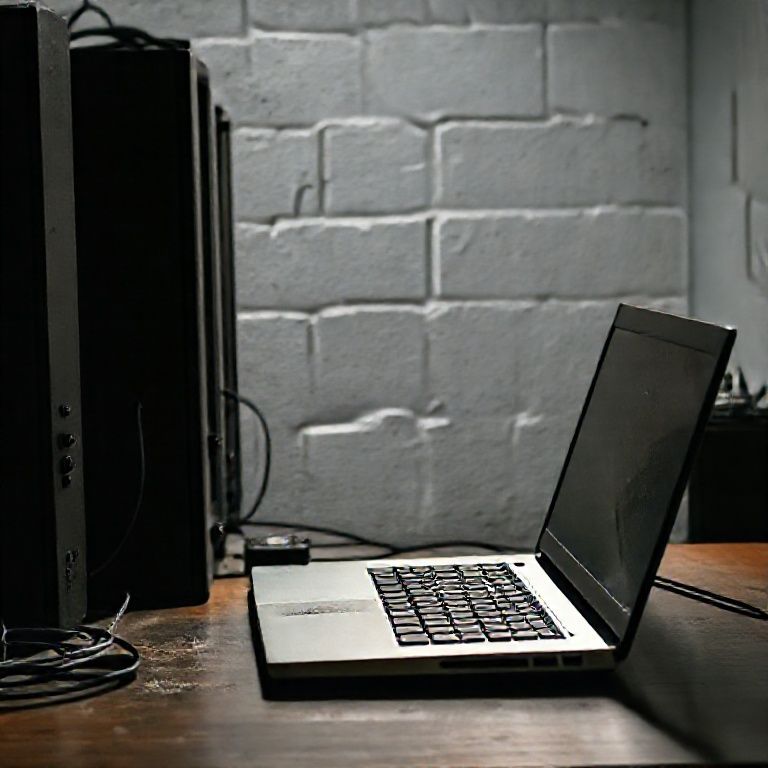
turn old laptop into home server

Introduction
As technology advances at a rapid pace, many of us are left with outdated devices that can no longer serve their original purpose. One common victim of this phenomenon is the old laptop that once faithfully served us for years, only to be relegated to the back of the shelf or worse, the trash bin. But before sending it on its way, consider giving your old laptop a new lease on life by turning it into a home server.
A home server is a device that stores and manages data, providing access to files, media, and other digital content from anywhere in the house. With a little creativity and some basic technical know-how, you can breathe new life into an old laptop and turn it into a reliable home server, capable of handling your growing family’s digital needs.
Not only will this project breathe new life into an old device that would otherwise be discarded, but it will also provide a cost-effective solution for storing and managing your digital content. By repurposing an old laptop as a home server, you can save money on external storage solutions and enjoy the peace of mind that comes with knowing all your files are safely stored in one place.
Step 1: Choosing the Right Laptop for Your Home Server
When selecting an old laptop to turn into a home server, consider the following factors:
Processor and RAM Requirements
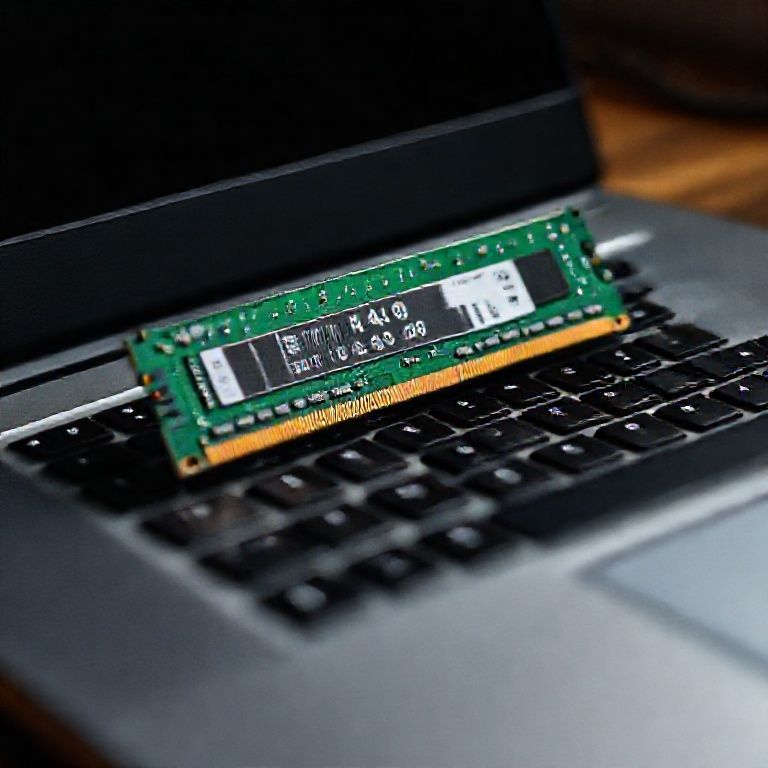
A good starting point is to look for laptops with at least 2-4 GB of RAM and a processor that’s at least dual-core. This will provide enough power for running multiple operating systems and applications.
For example, a laptop with an Intel Core i3 or i5 processor and 4GB of RAM would be a good starting point for a home server.
Storage Capacity
Choose a laptop with a large storage capacity, such as a hard drive or solid-state drive (SSD), to provide enough space for storing files and data.
Step 2: Preparing the Laptop for Server Use
Before installing an operating system, make sure the laptop’s hardware is in good condition:
Checking the Hard Drive
Check the hard drive for any errors or issues that could affect performance. Consider replacing the hard drive with a larger one if necessary.
Cleaning Dust from Fans
Clean dust from the laptop’s fans to ensure proper airflow and prevent overheating.
Step 3: Installing an Operating System
To turn your old laptop into a home server, you’ll need to install an operating system that supports server functionality. Some popular options include:
Ubuntu Server (Anchor: Ubuntu Server Documentation)
Ubuntu Server is a popular choice for home servers due to its ease of use and extensive community support.
CentOS Linux (Anchor: CentOS Linux Documentation)
CentOS Linux is another popular option for home servers, offering a stable and secure platform for running various server applications.
Step 4: Setting Up Your Home Server
Once you’ve installed your operating system, it’s time to set up your home server:
Configuring the Network Interface
Configure your laptop’s network interface to provide access to the internet and allow incoming connections from other devices on your network. This may involve setting up a static IP address or configuring DHCP.
Setting Up User Accounts
Create user accounts for yourself and any other users who will be accessing the server. Assign appropriate permissions and access levels to each user account.
Step 5: Installing Additional Software
To make your home server useful for storing files, streaming media, or hosting websites, you’ll need to install additional software. Some popular options include:
Nextcloud (Anchor: Nextcloud Documentation)
Nextcloud is a popular open-source file sharing and collaboration platform that’s well-suited for home servers.
Plex Media Server (Anchor: Plex Media Server Documentation)
Plex Media Server allows you to stream media files from your server to other devices on your network.
Step 6: Securing Your Home Server
To protect your home server from unauthorized access and malware attacks, take the following steps:
Installing a Firewall
Install a firewall to block incoming traffic from unknown sources. This will help prevent unauthorized access to your server.
Enabling Encryption
Enable encryption for your file shares and other sensitive data to prevent unauthorized access. Consider using tools like LUKS or AES encryption software.
Regularly Updating Software
Regularly update your operating system and installed software to ensure you have the latest security patches.
By following these steps, you can turn an old laptop into a reliable and secure home server that meets your storage and networking needs.

Conclusion
If you’re looking to breathe new life into an old laptop and turn it into a reliable home server, now is the perfect time to take action. With a little creativity and some basic technical know-how, you can transform your outdated device into a powerful storage solution for all your digital needs.
Don’t let that old laptop collect dust – give it a new lease on life by turning it into a home server. Not only will this reduce electronic waste, but it’ll also save you money on cloud storage and provide a secure, local repository for all your important files. So why wait? Get started today and discover the benefits of repurposing an old laptop into a reliable home server!
Here are five concise FAQ pairs for turning an old laptop into a home server:
Q: What kind of hardware do I need to turn my old laptop into a home server?
A: You’ll need a compatible operating system, such as FreeNAS or OpenMediaVault, and a reliable internet connection.
Q: Will converting my old laptop into a home server take up too much space in my house?
A: Yes, it will likely take up some space, but most home servers are compact enough to fit on a shelf or in a corner of your room.
Q: How do I ensure the security of my home server?
A: You’ll need to use strong passwords, enable firewall rules, and consider using antivirus software to protect against malware and other threats.
Q: Can I still use my old laptop for other tasks after converting it into a home server?
A: Yes, you can still use your old laptop for basic tasks like browsing the internet or checking email, but its performance may be limited due to the resource-intensive nature of running a server.
Q: How much does it cost to set up and run a home server from an old laptop?
Here’s a short quiz for converting an old laptop into a home server:
Question 1: What is the primary purpose of using a laptop to create a home server?
A) To provide high-speed internet connectivity
B) To run resource-intensive applications such as video editing software
C) To store and manage files, data, and media for personal use
Show answer
Answer: C
Question 2: Which type of operating system is commonly used on home servers due to its stability and security features?
A) Windows 10 Pro
B) Ubuntu Server
C) macOS Server
Show answer
Answer: B
Question 3: What kind of storage option would be most suitable for a home server, considering the need for high capacity and data durability?
A) External Hard Drive
B) Solid-State Drive (SSD)
C) Network-Attached Storage (NAS)
Show answer
Answer: C
Question 4: Which method is recommended to configure a home server’s network settings, ensuring it can communicate with other devices on the local network?
A) Using a static IP address and manual DNS configuration
B) Configuring DHCP and using a public DNS service
C) Utilizing a router’s built-in server mode
Show answer
Answer: B



This post is a goldmine of useful information. 😊
Thanks for this post. Your writing style makes complex topics easy to understand.
This is so useful! Bookmarking for future reference. Thanks for sharing!
This is exactly what I was looking for. Very helpful! 💯