
Upgrade Ram On A Laptop Safely: Confidence Killers that Confuse Beginners


upgrade ram on a laptop safely

Introduction
Upgrading the RAM on your laptop can be a straightforward process, but it’s essential to approach it with caution to avoid damaging your device or voiding its warranty. As your laptop’s performance becomes increasingly reliant on the amount of memory available, upgrading the RAM can breathe new life into an aging machine. However, if not done correctly, this upgrade can lead to a host of problems, from system instability to data loss.
Before embarking on this project, it’s crucial to understand the risks involved and take the necessary precautions to ensure a safe and successful upgrade. This includes researching your laptop model, identifying compatible RAM modules, and following proper installation procedures. A well-planned approach will help you avoid common pitfalls, such as damaging internal components or causing electrical shocks.
In this article, we’ll guide you through the process of upgrading RAM on a laptop safely, covering essential considerations, compatibility checks, and step-by-step installation instructions. Whether you’re looking to breathe new life into an old laptop or future-proof your current machine, our expert advice will help you navigate the world of laptop upgrades with confidence.

Upgrading RAM on a Laptop Safely: a Step-by-Step Guide
Preparing for the Upgrade
Before you begin, it’s essential to understand the risks associated with upgrading your laptop’s RAM. Improper installation can cause damage to your system, leading to data loss or even render your laptop unusable. To avoid these risks, follow the steps below:
Step 1: Check Compatibility
Check your laptop’s manual or manufacturer’s website to determine the compatible RAM type and speed for your device. Ensure that you’re purchasing a kit specifically designed for your laptop model.
Disassembling Your Laptop
Step 2: Shut Down Your Laptop
Power down your laptop completely. Unplug the power cord, any other cables, and remove the battery. This will prevent any accidental starts or electrical shocks during the upgrade process.
Step 3: Remove the Bottom Panel
Use a screwdriver to remove the screws holding the bottom panel in place. Gently pry the panel off using a plastic spudger or similar tool. Set aside for later reassembly. Be careful not to damage any of the surrounding components, such as the keyboard or touchpad.
Accessing the RAM
Step 4: Locate the RAM Slots
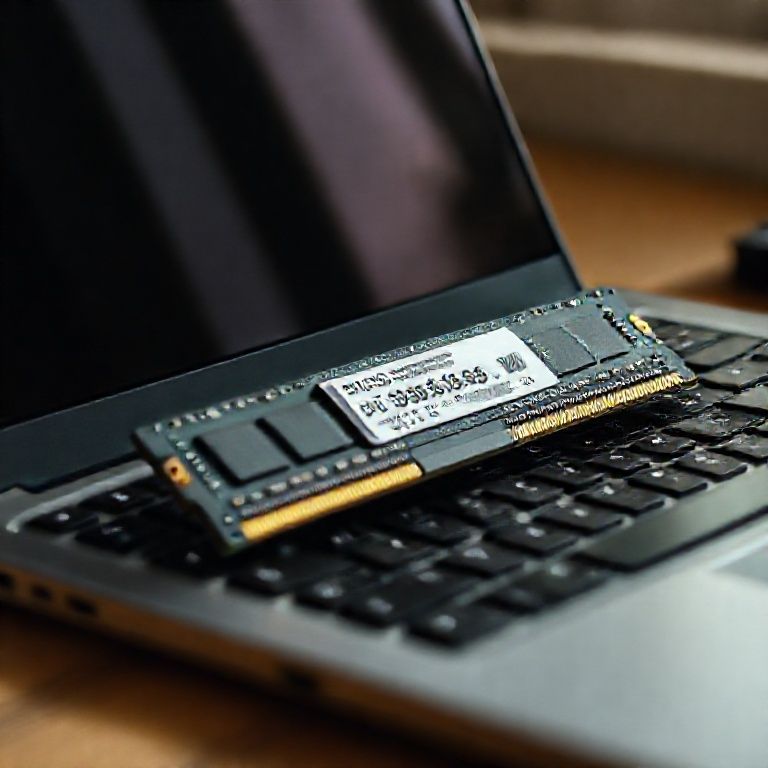
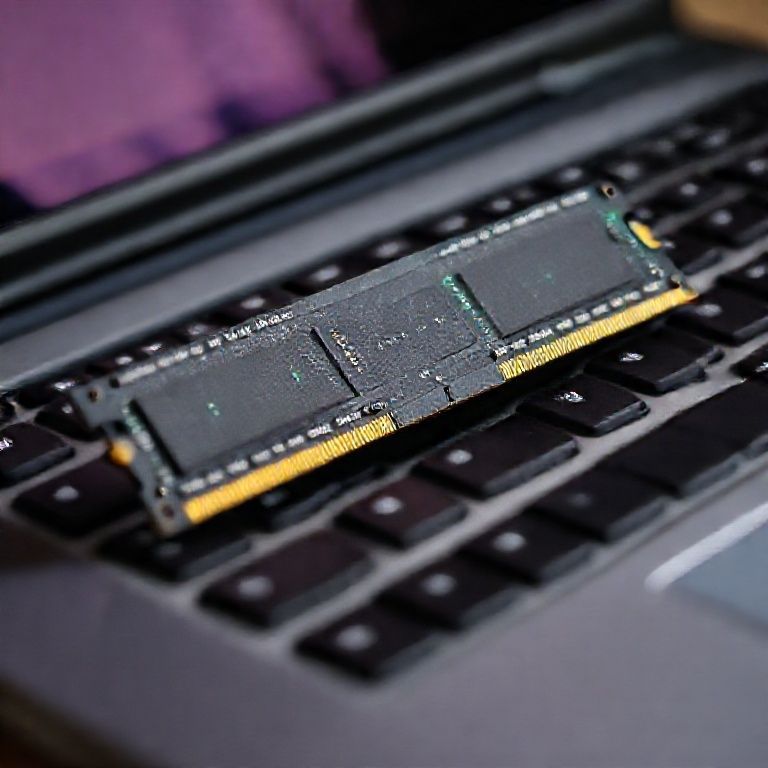
Identify the RAM slots on your laptop’s motherboard. Typically, they’re located near the CPU and are labeled as DIMM (Dual In-Line Memory Module) slots. Look for the following:
The number of RAM slots: Check if your laptop has a single or dual-channel configuration.
The type of RAM: Ensure that you’re purchasing a kit compatible with your laptop’s RAM type, such as DDR3, DDR4, or DDR5.
Step 5: Remove the Existing RAM
Gently push the existing RAM modules out of their slots. If they don’t come out easily, use a plastic spudger to carefully pry them loose. Be careful not to damage any of the surrounding components.
Installing New RAM
Step 6: Insert the New RAM
Align the new RAM module with the slot and gently push it in until you feel it click into place. Make sure that the notches on the RAM module align with the tabs on the slot.
Step 7: Secure the RAM
If your laptop has clips or screws holding the RAM in place, secure them now to prevent the new RAM from shifting during use. Use a screwdriver to tighten the screws firmly but avoid overtightening.
Reassembling Your Laptop
Step 8: Reattach the Bottom Panel
Reinsert the bottom panel and reattach it using the screws you removed earlier. Ensure they’re tightened securely but avoid overtightening, which can damage the surrounding components.
Step 9: Reconnect Cables and Power Cord
Reconnect any cables or peripherals you disconnected during the upgrade process. Make sure that all connections are secure and won’t cause any issues with your laptop’s functionality.
Verifying the Upgrade
Step 10: Boot Up Your Laptop
Power on your laptop and enter the BIOS settings (usually by pressing F2, F12, or Del). Verify that the new RAM is recognized and configured correctly. Check for any error messages or warnings in the BIOS settings.
Additional Tips:
Before starting the upgrade process, make sure you have a replacement battery and all necessary tools.
If you’re not comfortable with this process, consider consulting a professional or contacting the manufacturer’s support team for assistance.
Upgrading RAM can improve your laptop’s performance, but it may also void any warranties or guarantees.
For More Information on Upgrading RAM Safely, Refer to:
RAM upgrade guidelines from Crucial
Upgrading RAM on laptops:A beginner’s guide from Tom’s Hardware
The official documentation for your laptop’s motherboard or BIOS settings
Conclusion
In upgrading the RAM on your laptop safely, it’s essential to consider several factors before making any changes. Ensure that you purchase compatible RAM modules for your specific laptop model, check compatibility with your operating system, and follow proper installation procedures to avoid damaging your device.
Before taking the leap, take a moment to research and plan carefully. Consult your laptop’s manual or manufacturer website to understand the recommended specifications and any potential limitations. Additionally, consider upgrading one module at a time to minimize disruptions to your workflow.
If you’re ready to breathe new life into your laptop, start by checking online marketplaces for reputable sellers offering compatible RAM upgrades. Be cautious of counterfeit products and read reviews from other customers before making a purchase. With the right knowledge and preparation, you can successfully upgrade your laptop’s RAM, unlocking improved performance and efficiency.
Here are five concise FAQs for upgrading RAM on a laptop safely:
Q: What is the recommended way to upgrade RAM on my laptop?
A: Before upgrading, check your laptop’s manual or manufacturer’s website to ensure compatibility and follow their recommended upgrade procedure.
Q: How do I identify which type of RAM is compatible with my laptop?
A: Check your laptop’s documentation or online resources for specific RAM type and speed requirements. You can also look for the RAM module’s label or contact the manufacturer directly.
Q: Can I upgrade both RAM slots at once, or should I upgrade one slot first?
A: It’s recommended to upgrade one slot first to ensure that the new RAM works properly and doesn’t cause any issues with other system components.
Q: How do I handle static electricity when handling new RAM modules?
A: Touch a grounded metal object or wear an anti-static strap to discharge static electricity from your body before handling new RAM modules.
Q: Can I upgrade RAM on my laptop if it’s not under warranty?
Here’s a short quiz for upgrading RAM on a laptop safely:
Question 1: What is the first step before upgrading the RAM in your laptop?
A) Remove the battery
B) Ground yourself to prevent static electricity damage
C) Open the laptop case
Show answer
Answer: B
Question 2: Which of the following is NOT a safe way to upgrade RAM on a laptop?
A) Using a screwdriver to pry open the RAM slots
B) Replacing the existing RAM with new RAM without checking compatibility
C) Turning off the laptop and unplugging it from power
Show answer
Answer: A
Question 3: What should you do before removing any screws or covers to access the RAM?
A) Remove all screws holding the laptop case together
B) Use a screwdriver to remove any screws that hold the RAM module in place
C) Ground yourself and check for any signs of damage to the internal components
Show answer
Answer: C
Question 4: After upgrading the RAM, what should you do next?
A) Reassemble everything as it was before the upgrade
B) Turn on the laptop and test the new RAM
C) Check the laptop’s power supply unit (PSU) for any signs of overheating or damage
Show answer
Answer: B





Well written! This is pure gold!
I’ve been looking for information like this everywhere. Keep up the good work!
Great article! Amazing content as always. Looking forward to more posts like this.
Your writing style makes complex topics easy to understand. Thanks for sharing!
Thanks for this post. I’ve been looking for information like this everywhere.