
Beginner Pc Build Parts Checklist: 9 Smart Steps to Make It Easier

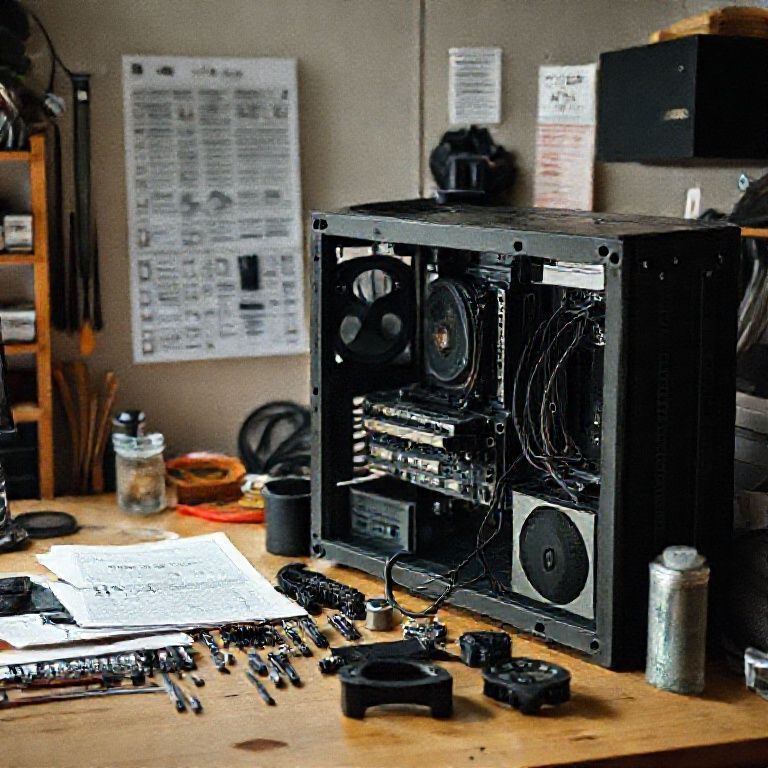
beginner pc build parts checklist
Introduction
Building your first PC can be an overwhelming experience, especially with the numerous components and technical jargon that come with it. As a beginner, navigating the vast world of PC hardware can be daunting, making it difficult to know where to start. This is where a well-structured guide comes in â a comprehensive beginner PC build parts checklist that helps you make informed decisions and ensures a smooth building process.
A thorough understanding of the components involved is essential for a successful PC build. From the CPU to the graphics card, each part plays a crucial role in determining the overall performance and functionality of your system. However, with so many options available, it’s easy to get lost in the sea of choices, leading to costly mistakes or even a failed build altogether.
In this article, we’ll provide you with a step-by-step beginner PC build parts checklist that covers everything you need to know before starting your project. Our comprehensive guide will take you through the essential components, their functions, and compatibility considerations, empowering you to make informed decisions and build a powerful PC that meets your needs and budget.
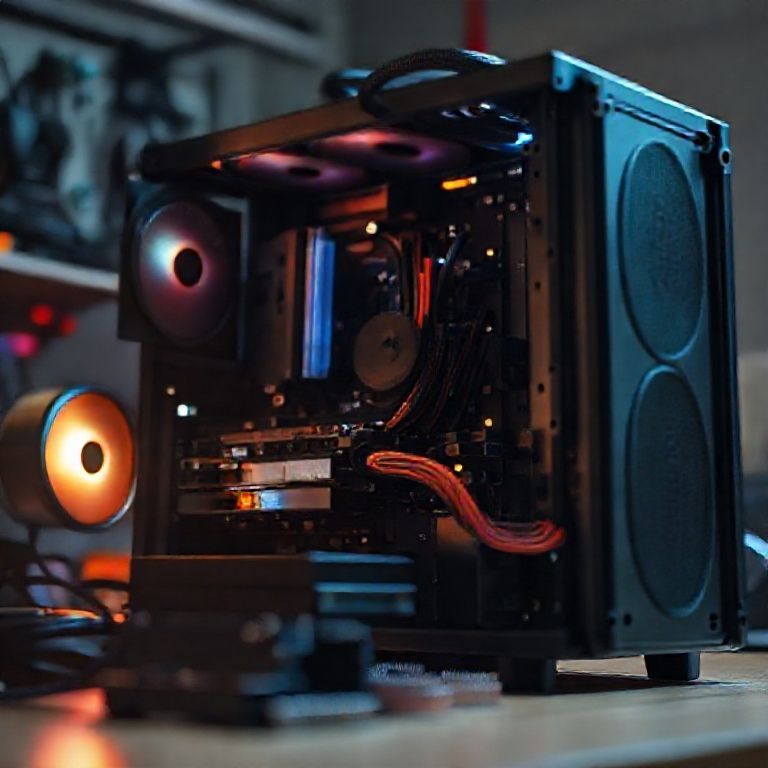
Beginner PC Build Parts Checklist
When building your first PC, it’s easy to feel overwhelmed by the numerous components and hardware options available. To ensure you don’t miss any crucial parts or make costly mistakes, follow this beginner-friendly guide to help you assemble a powerful and functional PC.
Choosing Your Components
CPU (Central Processing Unit)
The CPU is the brain of your computer and handles calculations and data processing. For beginners, consider an AMD Ryzen 3 or Intel Core i3 processor, which offer excellent performance at an affordable price.
Motherboard
The motherboard connects all hardware components together and provides a platform for your CPU to operate on. Choose a motherboard that supports your chosen CPU and has features such as USB ports, SATA ports, and HDMI outputs.
Additional Key Components
RAM (Memory)
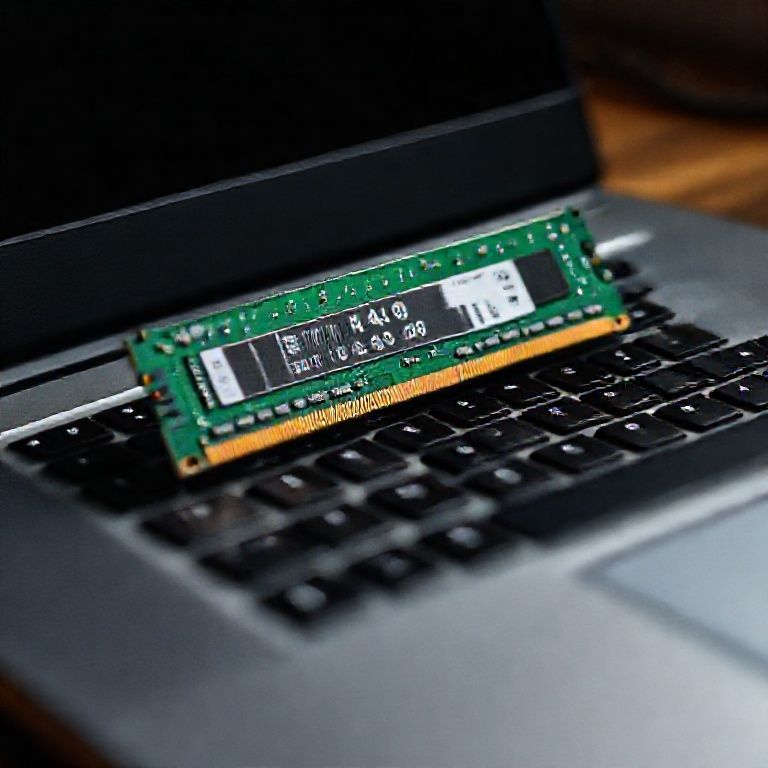
RAM is where your computer stores data temporarily while it’s being processed. For beginners, 8GB of DDR4 RAM is sufficient for most users. Consider adding more RAM later if needed.
Storage
Storage refers to the hard drive or solid-state drive that holds your operating system, programs, and files. A 512GB SSD (solid-state drive) is a good starting point, but consider upgrading to a larger storage option as needed.
Graphics Card
The graphics card handles graphics processing and rendering. For beginners, an integrated graphics solution is sufficient, but if you want to play games or use graphics-intensive programs, consider adding a dedicated graphics card like the NVIDIA GeForce GTX 1650.
Power Supply and Cooling
Power Supply
A power supply provides electricity to all components in your PC. Choose a power supply with enough wattage to support your build (at least 300W for most builds) and look for features such as high efficiency and modular cabling.
Cooling System
A cooling system helps keep your computer’s temperature under control, preventing overheating and damage. Consider adding a CPU cooler and case fans to ensure proper airflow and heat dissipation.
Peripherals and Accessories
Case Fans
Case Fans Help Circulate Air Through Your PC’s Case, Keeping It Cool and Quiet.
Monitor, Keyboard, and Mouse
These peripherals are essential for interacting with your computer. Choose a monitor that fits your budget and preferences, as well as a keyboard and mouse that suit your needs.
Step-by-Step Assembly Guide
1. Unpack and prepare all components.
2. Install the CPU onto the motherboard.
3. Add RAM to the motherboard.
4. Install the storage drive into the case.
5. Connect the power supply cables to the motherboard, CPU, and storage drive.
6. Install the graphics card (if applicable).
7. Connect fans to the motherboard or power supply.
8. Boot up your PC and install the operating system.
For more detailed information on PC building, visit:
[PC Part Picker](https: //pcpartpicker.com/) for component recommendations and build guides.
[Tom’s Hardware](https: //www.tomshardware.com/) for in-depth reviews and tutorials on PC hardware.
By following this beginner-friendly guide, you’ll be well on your way to creating a powerful and functional PC that meets your needs. Happy building!
Conclusion
In conclusion, building your own PC can seem like a daunting task, but with the right guidance and planning, it can be a fun and rewarding experience. By following our beginner’s PC build parts checklist, you’ll be well on your way to creating a powerful and custom-built computer that meets your specific needs.
Before you start shopping for individual components, take a moment to review our checklist and make sure you have all the necessary parts. Don’t hesitate to reach out if you have any questions or need further clarification on any of the items on the list. With patience, persistence, and a little bit of knowledge, you’ll be up and running with your new PC in no time.
Here are five FAQs for a beginner’s PC build parts checklist:
Q: What is the most important part of building a PC?
A: The CPU (central processing unit) is the most critical component, as it handles all calculations and executes instructions.
Q: Do I need to buy separate power supply and motherboard?
A: No, the motherboard usually comes with built-in power connectors, so you only need to purchase one power supply unit (PSU).
Q: What kind of RAM should I choose for my PC build?
A: Choose DDR4 or DDR5 RAM that matches your CPU’s type and speed rating, as specified in the CPU manual.
Q: Can I use any graphics card with my PC build?
A: No, you need to ensure the graphics card is compatible with your motherboard and has a power supply unit (PSU) that can handle its requirements.
Q: Do I need to buy an operating system separately or can I install one during installation?
Here’s a beginner PC build parts checklist quiz:
Question 1: What is the primary function of the CPU (Central Processing Unit) in a computer?
A) To store data
B) To provide power to other components
C) To perform calculations and execute instructions
Show answer
Answer: C) To perform calculations and execute instructions
Question 2: Which component stores data that the computer uses to run applications and operate?
A) RAM (Random Access Memory)
B) Storage Drive (HDD or SSD)
C) Graphics Card
Show answer
Answer: B) Storage Drive (HDD or SSD)
Question 3: What type of memory is used to temporarily store data that the CPU uses while running applications?
A) ROM (Read-Only Memory)
B) RAM (Random Access Memory)
C) Storage Drive (HDD or SSD)
Show answer
Answer: B) RAM (Random Access Memory)
Question 4: Which component handles graphics processing and rendering for the computer’s display?
A) Motherboard
B) CPU
C) Graphics Card
Show answer
Answer: C) Graphics Card


You have a gift for explaining things clearly. Keep up the good work!
Much appreciated! This was very enlightening. 😊
Thanks for this post. I’ve been looking for information like this everywhere.
This opened my eyes to a new way of thinking. Keep up the good work!
This is incredibly well-researched and informative. Great post!
This really helped me understand the concept better!