
Trello Workflow Setup For Projects: Hidden Traps that Hold You Back

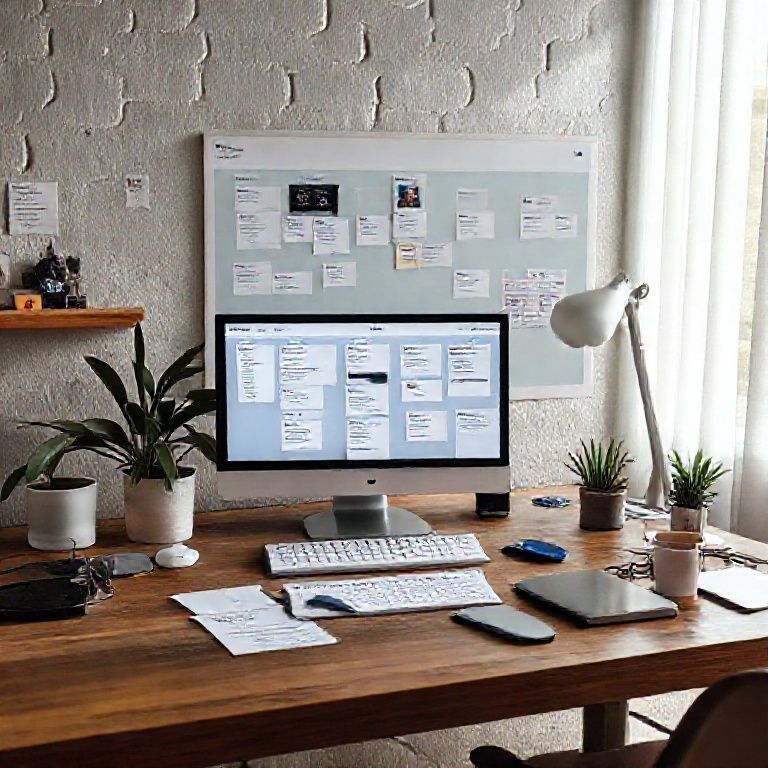
trello workflow setup for projects

Introduction
In today’s fast-paced project management landscape, setting up an effective workflow is crucial to ensuring seamless collaboration and timely completion of tasks. A well-organized workflow can make all the difference between a project’s success and its downfall. One popular tool that has gained significant traction in recent years for its flexibility and customizability is Trello. By leveraging Trello’s powerful features, businesses and individuals alike can create a tailored workflow setup that caters to their unique project needs.
A well-designed Trello workflow setup for projects involves more than just creating boards and lists – it requires careful consideration of the tools, templates, and processes that will be used to bring the project to life. From setting up boards and lists for different stages of the project lifecycle to creating custom cards and attachments, a thoughtful approach is essential to maximizing Trello’s potential.
In this article, we’ll delve into the world of Trello workflow setup for projects, exploring the key considerations, best practices, and proven strategies that will help you create a tailored workflow that meets your specific needs. Whether you’re a seasoned project manager or just starting out, our guide will provide you with the insights and advice needed to unlock the full potential of Trello and take your project management skills to the next level.

Setting Up a Trello Workflow for Projects
Understanding the Benefits of a Trello Workflow
A well-structured workflow on Trello can significantly improve project management efficiency and productivity. By organizing tasks, deadlines, and team members into separate boards, lists, and cards, you can streamline communication, track progress, and make data-driven decisions.
Step 1: Creating a New Board
To set up a Trello workflow for projects, start by creating a new board specifically dedicated to your project. This will serve as the central hub for all project-related tasks, discussions, and documentation.
Adding Lists and Cards
Create separate lists for different stages of your project, such as:
To-Do: for tasks that need to be completed
In Progress: for tasks currently being worked on
Done: for tasks that have been completed
Ideas: for brainstorming new ideas or features
Roadmap: for outlining project milestones and deadlines
Create cards for each task, including relevant details such as:
Task description
Assignee (team member)
Due date
Comments (for discussion)
Best Practices for Cards
Use clear and concise card titles to quickly identify tasks.
Include relevant attachments or links to supporting files.
Set up automatic due dates using Power-Ups.
Step 2: Setting Up Workflow Automation
Trello offers a range of automation options to streamline your workflow. Consider using:
Power-Ups to automate tasks, such as assigning due dates or creating new cards
Labels to categorize and prioritize tasks
Filters to narrow down card views by specific criteria
Using Trello’s Built-in Features
Take advantage of Trello’s built-in features, such as:
Background Images: add a visual element to your board
Due Dates: set reminders for upcoming deadlines
Attachments: share relevant files and documents with team members
Advanced Automation Options
Use the “Power-Up” feature to automate tasks, such as assigning due dates or creating new cards.
Set up custom filters to narrow down card views by specific criteria.
Step 3: Introducing Team Members and Collaboration Tools
Invite team members to join the board and assign them specific roles or responsibilities. Consider using:
@mentions: notify team members of new comments or updates
Checklists: allow team members to mark tasks as completed
Comments: facilitate discussion and feedback
Using Third-Party Integrations
Integrate Trello with other tools and services, such as:
Asana (): integrate task management and project planning.
Slack (): enhance communication and collaboration.
Best Practices for Collaboration
Use clear and concise language in comments and @mentions.
Set up checklists to track progress and ensure tasks are completed.
Regularly review and update the board to reflect changing project requirements.

Conclusion
In conclusion, setting up a Trello workflow for your projects can greatly improve efficiency and productivity. By creating boards, lists, and cards to organize tasks and track progress, you can streamline communication, reduce confusion, and increase team collaboration.
To start implementing a Trello workflow in your own projects, we encourage you to take the first step by visiting our resources page for a comprehensive guide on setting up a Trello board. With our expert tips and best practices, you’ll be well on your way to creating a seamless project management system that meets your unique needs.
Here are five concise FAQ pairs for Trello workflow setup for projects:
Q: What is the best way to organize my boards on Trello?
A: Organize your boards by project, client, or category, using clear and descriptive names that help you quickly identify the board’s purpose.
Q: How do I create a standardized workflow on Trello?
A: Create a template with standard lists (e.g., To-Do, In Progress, Done) and use labels to categorize tasks, making it easy to replicate across multiple boards and projects.
Q: What is the best way to prioritize tasks on Trello?
A: Use the priority feature to assign numbers or colors to tasks based on their importance, and consider using the Eisenhower Matrix to categorize tasks by urgency and importance.
Q: How do I set up deadlines for tasks on Trello?
A: Set a deadline for each task by clicking the calendar icon next to the task name, allowing you to schedule tasks and receive reminders as the deadline approaches.
Q: What is the best way to collaborate with team members on Trello?
Here’s your Trello workflow setup quiz:
Question 1: What is the primary purpose of creating a Board in Trello for a project?
A) To assign tasks to team members
B) To track progress and visualize workflows
C) To store files and documents related to the project
Show answer
Answer: B
Question 2: Which of the following lists should be used as the starting point for a new project in Trello?
A) In Progress
B) Waiting on Client
C) Backlog
Show answer
Answer: C
Question 3: What is the purpose of creating separate Boards for different projects or teams in Trello?
A) To assign tasks to team members
B) To track progress and visualize workflows across multiple projects
C) To store files and documents related to individual projects
Show answer
Answer: B
Question 4: Which of the following lists should be used to track completed tasks in a project?
A) Backlog
B) In Progress
C) Done
Show answer
Answer: C





Your expertise really shows in this post. Keep up the good work!
This helped me solve my problem. Thank you so much! Keep up the good work!
Great article! You’ve outdone yourself with this one!
Much appreciated! This was very enlightening. Keep up the good work!
Your expertise really shows in this post. Keep up the good work!
Great article! Amazing insights!